2027 Returning Scorer Availability
Accessing Availability Form
If you do not currently have the Island browser installed, follow the instructions below beginning with steps 1 & 2.
For all others, skip to step 3.
- Using your intended scoring device from your United-States-based address that is on file in Dayforce, download the Island Browser using the link below, selecting the version indicated by the website:
https://getbrowser.datarecognitioncorp.com (copy and paste if link does not work) - Install the Island browser by opening the downloaded file.
It is your responsibility to maintain a device that is compatible with the Island browser.
DRC Support is unable to assist with incompatible device issues.
If you currently have Island installed:  < Island browser icon
3. Open the Island browser and click “Start using Island”.
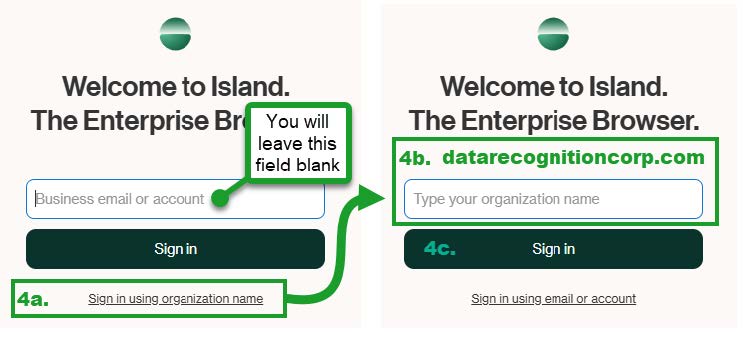
DO NOT ENTER AN EMAIL ADDRESS ON ANY LOGIN SCREEN SHOWN IN STEP 4
You MUST use the organization name to get to the DRC instance of Island
4. Access Island using the organization name option and entering datarecognitioncorp.com:
a. Click the “Sign in using organization name” link underneath the “Sign in” button.
b. In the field which says “Type your organization name”, type or copy/paste the following as
shown in 4b. below:
datarecognitioncorp.com
c. Click “Sign in”.
- If you do not see “DRC INSIGHT” at the top of the login screen, do not enter your credentials.
Instead, repeat step 4 until you see the DRC INSIGHT login page pictured here:
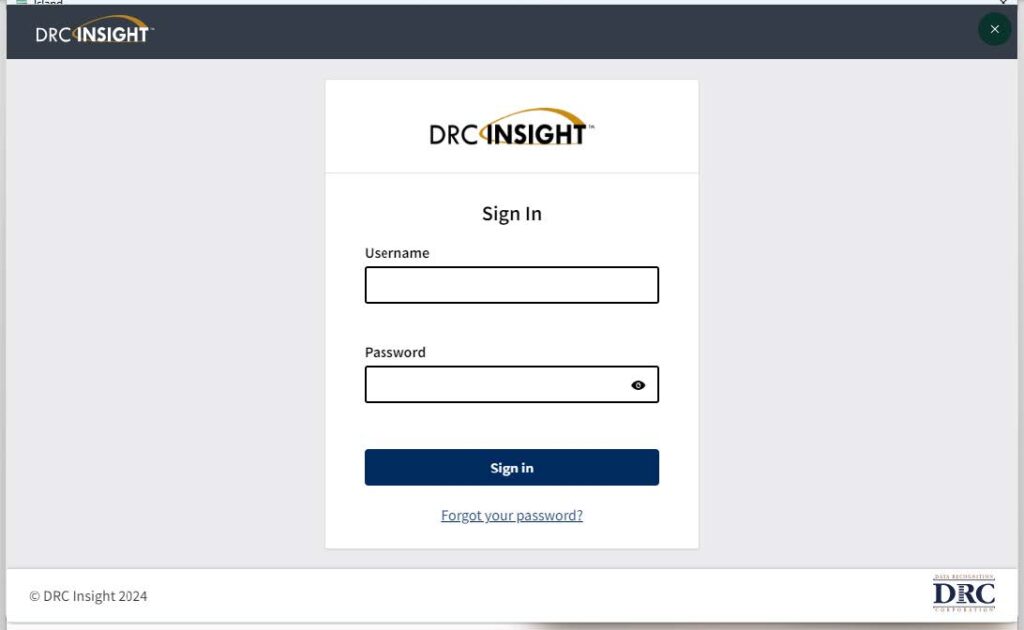
6. You will need to reset your Portal password to proceed: Reset your password using the “Forgot your password?” link and follow the instructions to create a password.
Your email is the email address in which you received these instructions from DRCScoringHR.
You will receive an email from no-reply@datarecognitioncorp.com titled “DRC Portal
Password Request” with reset instructions. Be sure to check your junk/spam folders if you
do not find this email in your inbox. This email may take several minutes to arrive.
After you have successfully reset your password, close Island so your password can sync with your account.
Log in again repeating steps 3 – 5 above. When the DRC INSIGHT page loads, sign in with your email and the password you just reset.
7. When you sign into Island it should automatically pop open tabs and you will be proceeding through
Moodle, which may say “Dashboard”.
You can also navigate to Moodle through an icon (pictured below) on the Island homepage (any new
tab), or through the Managed Bookmarks bar.

Upon opening Moodle, select the following course from your dashboard:
2027 Returning Employee Sign-up Sheet
8. Follow the instructions on the course page to submit your 2027 availability information. Check for a confirmation message after you have submitted the form to confirm you have completed the process.
If your availability changes, you will need to resubmit the form.
If you have trouble with any steps, please reread the instructions carefully and try again.
If you still cannot proceed, please email DRC Scoring Support at:
ScoringSupport@datarecognitioncorp.com
Responses will typically be returned within 3 business days.