EDUCATOR SCORER
LOGGING INTO DRC PROJECT TRAINING
- Using a Chrome browser, navigate to the following website:
- When the DRC INSIGHT page loads, sign in with your DRC INSIGHT credentials (below).
Your username is the email address which received these instructions from DRC HR. Use the following options to proceed with your password:
a. Returning Workers: Try your last-used DRC INSIGHT (ScoreBoard) password and sign in. If you are unable to sign in, follow the steps for New Employees listed below.
b. New Employees: Set your password using the “Forgot your password?” link and follow the instructions to create a password. You will receive an email from
no-reply@datarecognitioncorp.com with instructions to reset your DRC Portal password. Be sure to check your junk/spam folders if you do not find this email in your inbox.
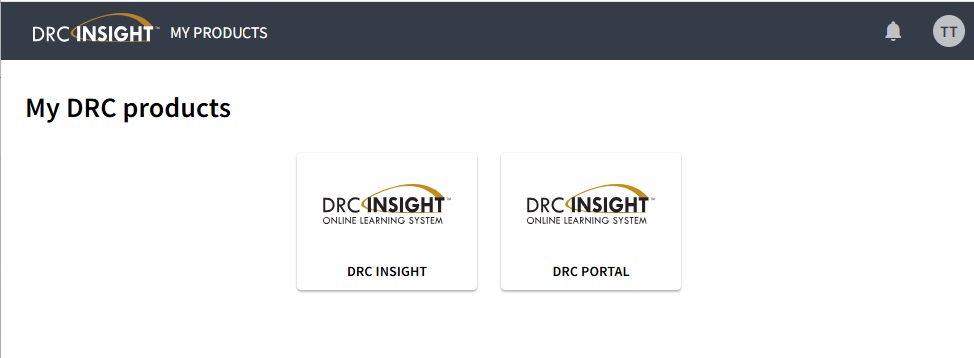
3. After setting or updating your password you will be taken to My DRC products. Click the “DRC Portal” option.
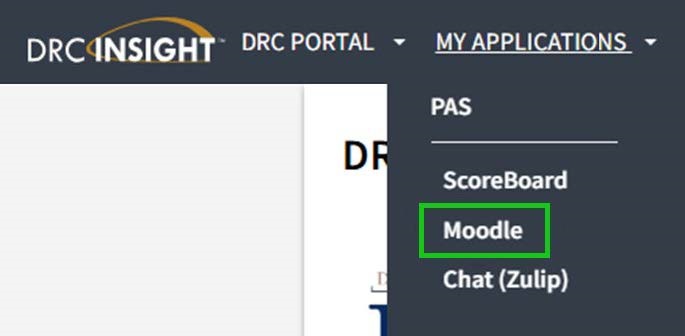
4. At the top of your screen is “MY APPLICATIONS”, click this and select “Moodle” from the dropdown menu.
5. Upon opening Moodle, a user tour will help guide you into your initial training session.
If you accidentally end the user tour you can click the link at the bottom of the page to “Reset user tour on this page”.
Alternatively, the red text at the top of each page will also guide you into your initial training session.
If you have trouble with any steps, please reread the instructions carefully and try again. If you still cannot proceed, please call:
DRC Scoring Support at (833) 867-5678
ScoringSupport@datarecognitioncorp.com
Available business days during project hours