DRC Scoring Support
Scorer Login Instructions
Logging into DRC Project Training
Steps 1-2 should have been completed during the Screening process. If you have already downloaded and installed Island, skip to step 3 on your start date.
At least one business day in advance of start date:
(Failure to complete steps 1 & 2 prior to start date may result in removal from project)
1. Using your intended scoring device*, download the Island Browser using the link below, selecting the version indicated by the website:
https://getbrowser.datarecognitioncorp.com
2. Install the Island browser by opening the downloaded file. If you cannot find where your download went, your browser will have a way to navigate to its “Downloads” folder through a button or menu option (this method varies by browser).
- DRC support has limitations in assisting with download / install issues on your personal device.
 This is as far as you can go until your start date. Your account may not be created and the following steps may not be possible. Support cannot assist login issues until your start date.
On your start date:
3. Open the Island browser and click “Start using Island”. If you cannot find the program after installing, check your desktop (background) or use your system’s Search feature.
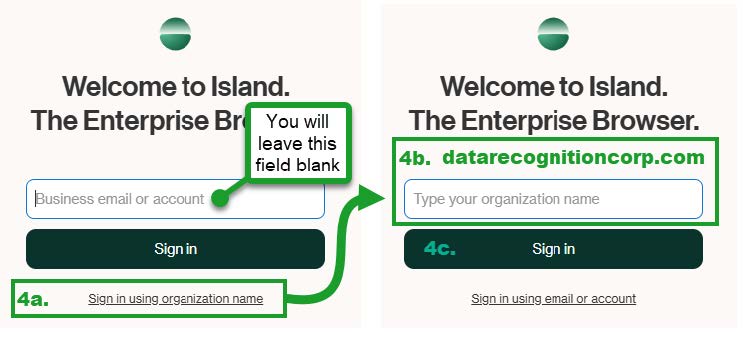
4. Access Island using the organization name option and entering datarecognitioncorp.com:
a. Click the “Sign in using organization name” link underneath the “Sign in” button.
b. In the field which says “Type your organization name”, type or copy/paste the following as shown in 4b. below:
datarecognitioncorp.com
c. Click “Sign in”.
5. If you do not see “DRC INSIGHT” at the top of the login screen, do not enter your credentials.
Instead, repeat step 4 until you see the DRC INSIGHT login page pictured here:
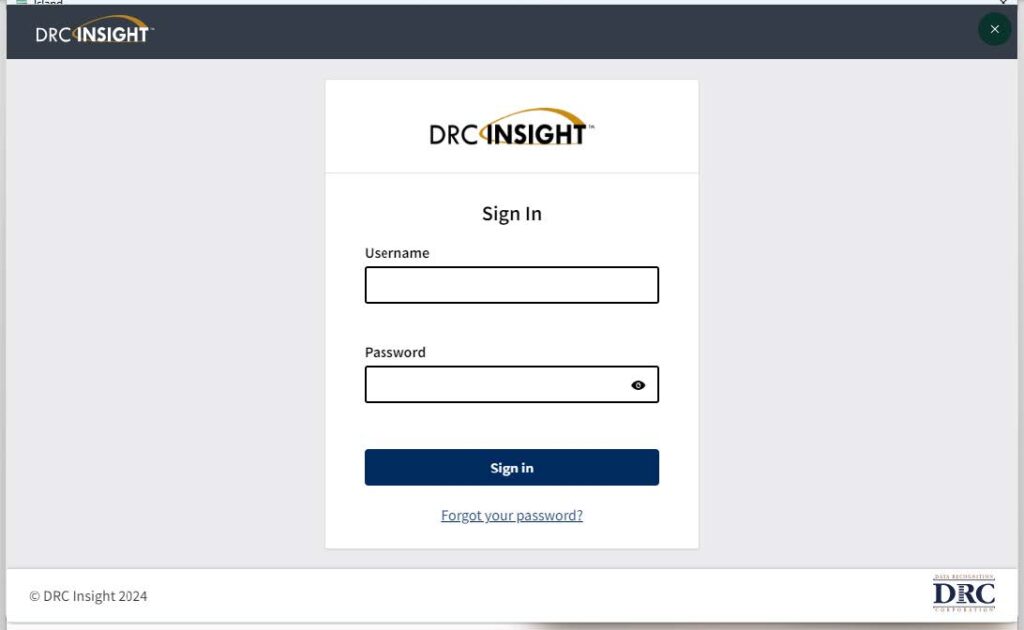
When the DRC INSIGHT page loads, sign in with your DRC INSIGHT credentials. Your username is the email address which received these instructions from DRC HR. Use the following options to proceed with your password:
a. Returning Workers: Try your last-used DRC INSIGHT (ScoreBoard) password and sign in. If you are unable to sign in, follow the steps for New Employees listed below.
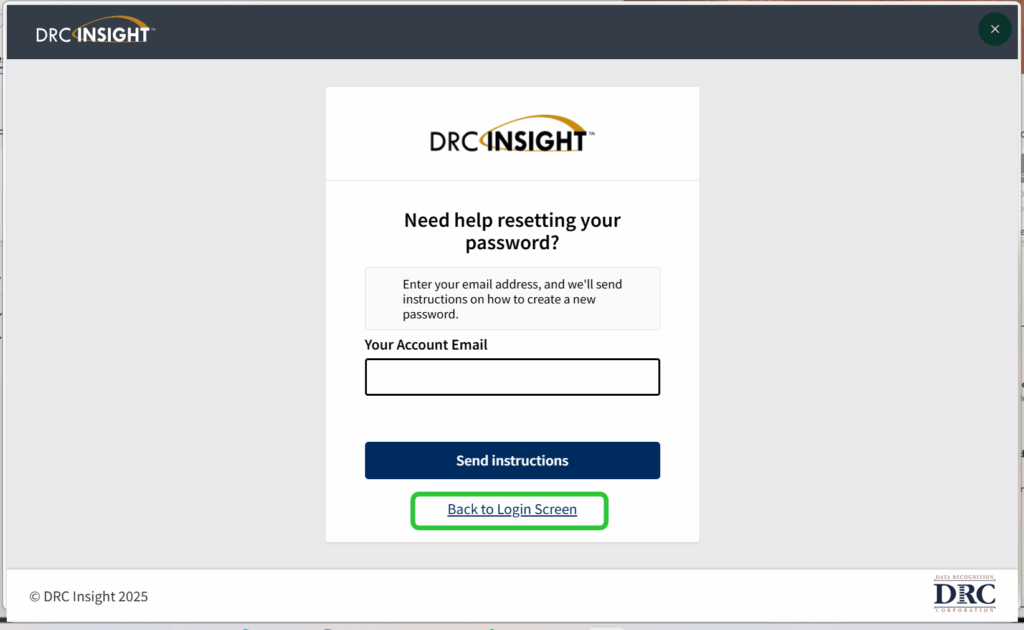
b. New Employees: Set your password using the “Forgot your password?” link and follow the instructions to create a password.
You will receive an email from no-reply@datarecognitioncorp.com titled “DRC Portal Password Request” with reset instructions. Be sure to check your junk/spam folders if you do not find this email in your inbox. This email may take several minutes to arrive.
Once your password is set, return to Island by clicking the “Back to Login Screen” link.
6. When you sign into Island it should automatically pop open tabs and you will be proceeding through Moodle, which may say “Dashboard”.
You can also navigate to Moodle through an icon (pictured below) on the Island homepage (any new
tab), or through the Managed Bookmarks bar.

7. Upon opening Moodle, a user tour will help guide you into your initial training session.
If you accidentally end the user tour you can click the link at the bottom of the page to “Reset user
tour on this page”.
Alternatively, the red text at the top of each page will also guide you into your initial training
session.
If you have trouble with any steps, please reread the instructions carefully and try again. If you still cannot proceed, please call or email:
DRC Scoring Support at (833) 867-5678
ScoringSupport@datarecognitioncorp.com
Available business days during project hours.
All calls, including voicemails, are handled in the order they are received. Calling multiple times for the same issue may prevent your call from being answered efficiently.